How to Fix Self-Referrals in GA4
If your GA4 reports show your own website, PayPal, Stripe, a booking tool, or another checkout platform as a top referral source, your attribution is broken and your reports are probably misleading you.
The problem shows up in a lot of GA4 accounts. A customer clicks a paid ad, browses your site, and goes through checkout. If the payment flows through PayPal or Stripe, GA4 sometimes treats the return trip as a new referral from that payment provider rather than a continuation of the original session.
So instead of seeing the channel that actually brought the customer in, you see:
paypal.com / referralstripe.com / referralyourdomain.com / referralcheckout.yourdomain.com / referral- a booking or scheduling platform appearing as a top source
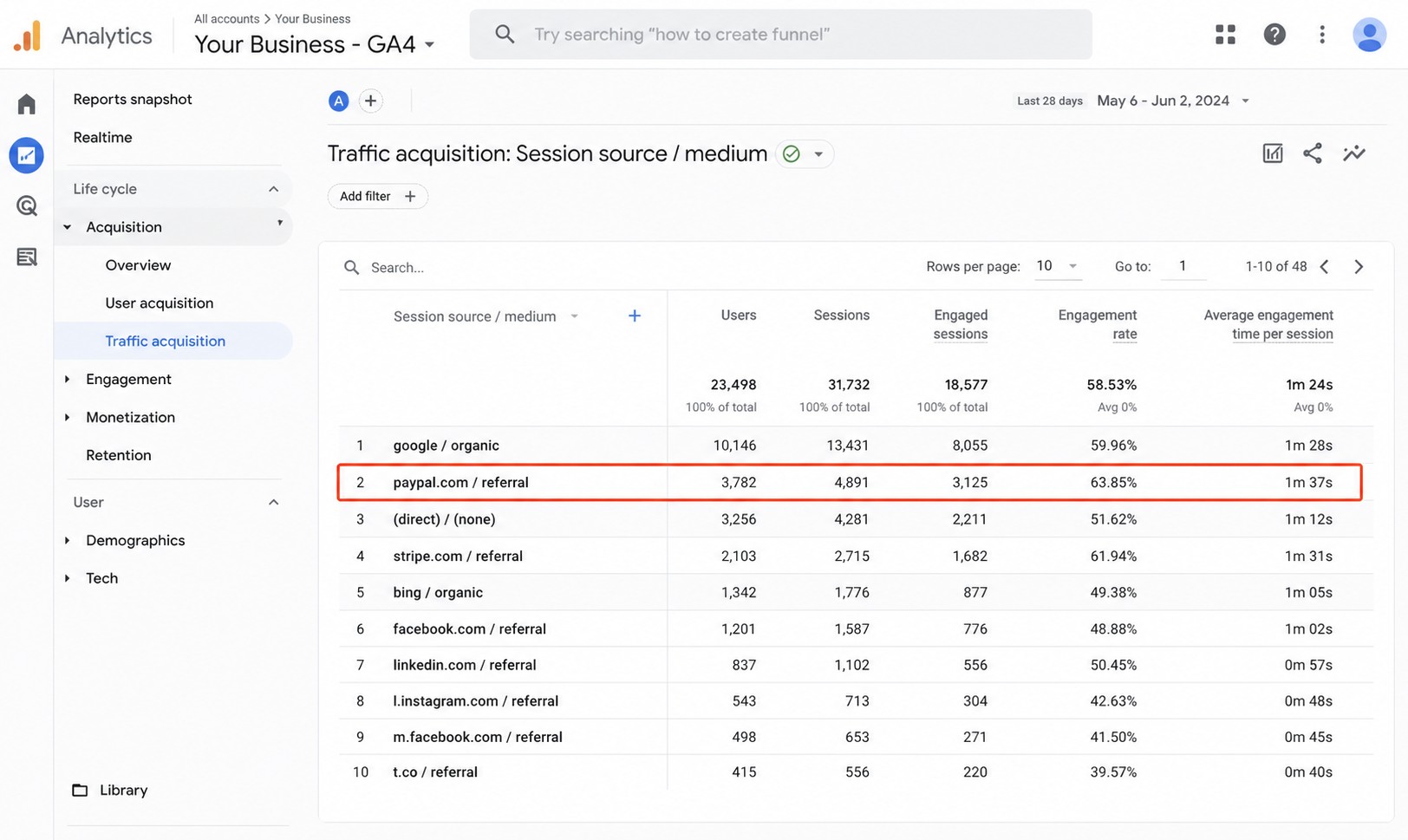
For a small business relying on GA4 to evaluate marketing, that creates a real problem. Referrals that aren't real referrals make it hard to see what's actually working.
This guide covers what self-referrals and unwanted referrals are, why they happen, and how to fix them.
What are self-referrals in GA4?
A self-referral happens when your own website shows up as a referral source in GA4. GA4 lost track of the session somewhere in the journey and started treating part of it as a new visit from an external source.
You'll see it as your main domain, a subdomain, or your checkout URL showing up in referral reports. None of those are real marketing channels, so finding them there is a signal that something in your tracking setup needs attention.
What are unwanted referrals in GA4?
Unwanted referrals are third-party domains that show up as referral sources even though they didn't bring the customer to you. Payment processors, booking platforms, scheduling tools, and login providers all fall into this category.
If someone arrives through Google Ads and checks out through PayPal, GA4 sometimes credits PayPal with the conversion. PayPal moved the money, but it didn't generate the customer. That credit belongs with the original channel.
Why this affects marketing decisions, not just reports
When a payment processor or checkout flow absorbs attribution credit, every channel that actually drove that sale looks weaker. You might cut paid search because conversions look thin, when the real issue is that PayPal is taking the credit.
Beyond misreading individual channels, self-referrals and unwanted referrals make week-over-week changes harder to interpret. A spike or drop in referral traffic may reflect something changing in your checkout flow, not actual marketing performance. If you've ever looked at your referral channel and wondered why PayPal is one of your top converters, this is probably why.
How to check if this is affecting your data
Pull up your traffic acquisition report and look at who's getting credit.
Scan for your own domain, any checkout subdomains, PayPal, Stripe, or booking and scheduling tools in the source list. If any of those are showing meaningful sessions or conversions, your attribution has a problem.
Pay particular attention to conversions. If a payment processor is appearing as the source for purchases or lead submissions, it's taking credit from whichever channel actually brought that person in.
Self-referrals vs referral spam
Before going further, it's worth distinguishing self-referrals from referral spam. A self-referral involves your own website or a tool in your checkout flow stealing attribution. Referral spam is fake traffic sent from external sources by bots or spammers.
They can look similar in reports, but the cause and fix are different. If the suspicious traffic looks like it's coming from random sites you've never heard of, start with our guide to reducing bot traffic in GA4. If it's your own domain, PayPal, or Stripe, keep reading.
Why self-referrals happen in GA4
1. Cross-domain tracking isn't configured
If users move between your main site and a checkout subdomain, booking platform, or third-party cart, GA4 needs to recognize those as part of the same session. Without cross-domain measurement, it treats the return trip as a new visit from the intermediate domain, creating a self-referral.
2. GA4 isn't firing on every step
Gaps in your GA4 tagging break session continuity. A checkout page with a different tag setup, an untagged thank-you page, or a third-party tool that doesn't carry the GA4 tag can all cause the session to restart when the user returns to your site.
3. Payment providers redirect users off-site and back
Tools like PayPal and Stripe redirect users to their platform and back to your confirmation page. Without the right configuration, GA4 counts the return as a new visit from the payment provider rather than a continuation of the existing session.
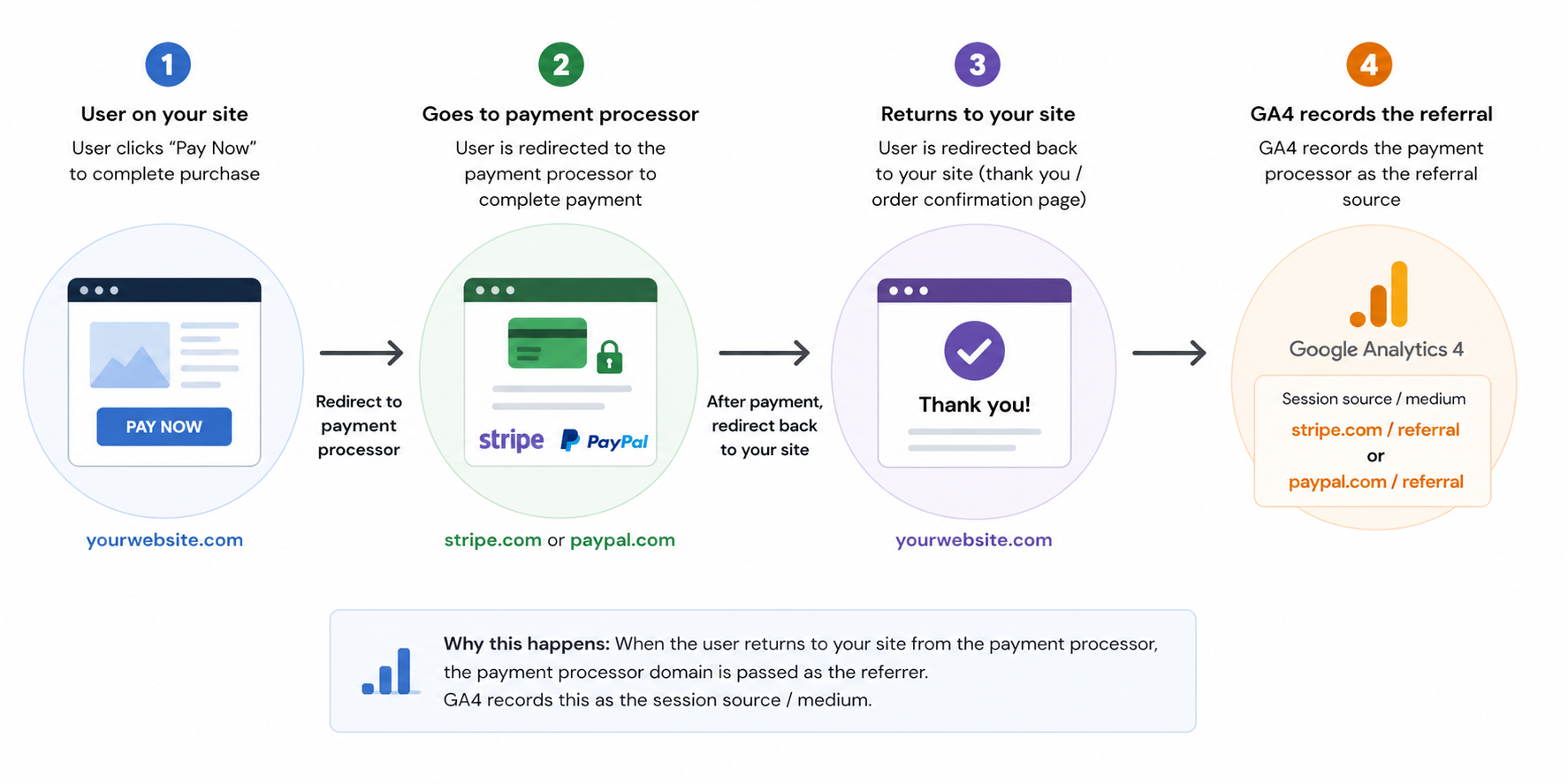
4. Intermediate domains aren't excluded from referral tracking
GA4 has a setting for listing domains that shouldn't count as referral sources. If your payment processor, booking engine, or login provider isn't on that list, GA4 will attribute the session to them every time a customer passes through.
5. Inconsistent Measurement IDs across your site
Running different GA4 Measurement IDs on your main site, checkout, app, or subdomains causes attribution to fragment. This tends to build up gradually as businesses add tools without auditing the full analytics setup.
How to fix self-referrals and unwanted referrals in GA4
1. Add unwanted referrals in GA4
Start here if you're seeing payment providers or booking tools in your referral reports.
Add the domains that shouldn't receive marketing credit:
paypal.comstripe.com- your booking platform
- your scheduling tool
- your login provider
- your checkout tool
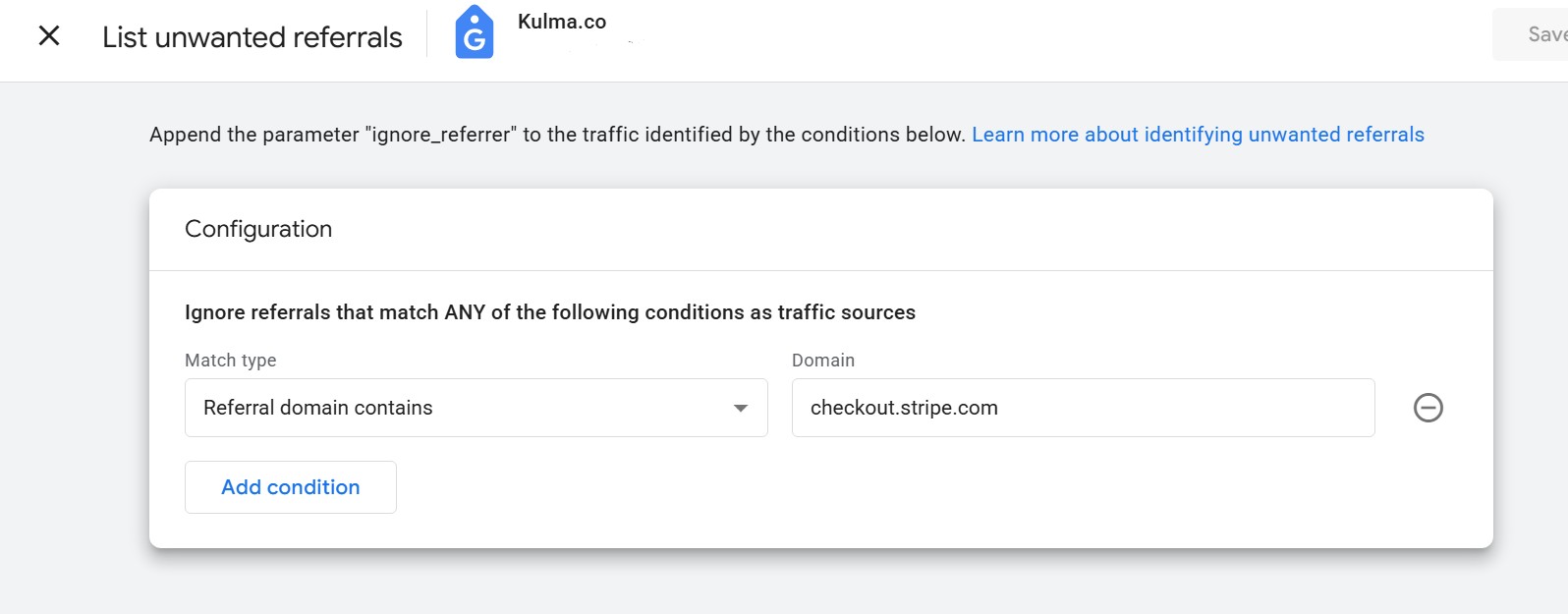
One caveat: only add domains that are genuinely part of your checkout or booking flow. Don't exclude legitimate referral partners, affiliates, or other sites that actually send you customers.
2. Review cross-domain measurement
If customers move between your main website and a checkout subdomain, booking engine, payment flow, or login area, cross-domain measurement tells GA4 to treat that as one session rather than two separate visits.
It matters most when you use a separate checkout domain, a booking engine, or an external payment flow. Test the full customer journey to confirm sessions stay connected from first landing to confirmation page.
3. Check that GA4 fires on every step
Walk through your full customer journey and verify GA4 is present at each step: landing pages, product or service pages, checkout entry and return, thank-you pages, booking confirmations, form confirmations, and login pages. A gap anywhere in the middle breaks attribution.
4. Take your own domain appearing as a referral seriously
If your own domain shows up as a referral source, something in your tracking setup needs review. It means GA4 thinks someone arrived from your site as if from an outside source. That shouldn't happen, and it won't go away on its own.
5. Give it time after making changes
These fixes apply going forward. Historical reports won't change.
After making changes, wait one to two weeks and check whether the payment providers and checkout domains have dropped out of your referral sources, and whether conversions have shifted toward more recognizable channels. A drop in referral traffic after cleanup is a good sign.
What not to do
Don't add every referral source to the exclusion list
Some referrals are real. If another website genuinely sends customers to you, keep it in your reports. Only exclude domains that are part of your own checkout or booking flow and shouldn't receive acquisition credit.
Don't expect this to fix bot or spam traffic
The unwanted referrals setting cleans up attribution. It doesn't block fake or bot traffic. If the issue is suspicious traffic from sites you don't recognize, read our guide to reducing bot traffic in GA4.
Don't evaluate campaigns on messy attribution data
If PayPal, Stripe, or your own domain is taking credit, your channel performance numbers are distorted. Get the obvious attribution issues sorted before drawing conclusions about which campaigns are working.
Get a weekly GA4 brief that helps you catch attribution issues early
Kulma turns your GA4 data into a weekly brief: what changed, what it means, and what to check next. For attribution issues like self-referrals and unwanted referrals, it surfaces the patterns that make weekly reporting hard to trust, before they affect how you read a campaign.
Kulma doesn't rewrite your GA4 property. It helps you read it more critically, so you're less likely to act on data that's quietly misleading.
Get a weekly brief that fixes your attribution — Try Kulma freeNo credit card required · Cancel anytime
Frequently asked questions
Why is my own website showing as a referral in GA4?
Most likely GA4 lost track of the session somewhere in the journey. The most common causes are missing cross-domain tracking, inconsistent tags across subdomains, or untagged confirmation pages.
Should PayPal and Stripe be added as unwanted referrals in GA4?
In most cases, yes. If they're part of your checkout flow and shouldn't receive marketing credit, they belong in the unwanted referrals list.
Will this change historical GA4 data?
No. These fixes apply to data going forward. Historical reports will still reflect the old attribution.
Is a self-referral the same as referral spam?
No. A self-referral involves your own site or tools in your customer journey. Referral spam is fake traffic from external sources. See our guide to reducing bot traffic in GA4 if the issue looks like spam.
Can I fix this without a developer?
The unwanted referrals list is easy to update in GA4 and takes about 10 minutes. Cross-domain tracking and tag consistency issues are more involved and may need Google Tag Manager or developer help.
How long does it take to see results?
Changes apply going forward, but give it one to two weeks before drawing conclusions from the data.
Final thoughts
Self-referrals and unwanted referrals are worth fixing. They quietly skew your channel numbers in ways that make it hard to tell what's actually working.
Check your referral sources first. If your own domain, checkout tool, payment provider, or booking platform is in there, add them to the unwanted referrals list, review cross-domain tracking, and verify that GA4 is firing on every step in the journey.
Once attribution is cleaner, the numbers are easier to act on. You stop second-guessing whether PayPal is really one of your top channels.
Related guide: How to reduce bot traffic in GA4.