GA4 Unassigned Traffic: What It Means and How to Reduce It
If you use Google Analytics 4, you've probably seen traffic listed under a channel called Unassigned. It's one of those labels that looks worse than it usually is — but a growing amount of it can make your reports hard to trust and even harder to act on.
It doesn't mean something is broken. It means GA4 couldn't place that traffic into one of its standard channel groups — Organic Search, Paid Search, Email, Social, Direct, Referral, and so on. Most of the time, it comes back to one thing: messy, missing, or inconsistent campaign tracking.
What does Unassigned mean in GA4?
GA4 uses rules to sort incoming traffic into channels. When a session doesn't match any of those rules, it ends up as Unassigned.
That doesn't make the visit fake or the data worthless. It just means GA4 received traffic information that didn't fit cleanly into its standard definitions. You'll still see the session in your totals — you just won't know where it came from.
Direct / None vs. Unassigned: what's the difference?
These two show up in reports constantly and get confused all the time — but they mean different things and need different fixes.
Direct / None usually means GA4 didn't receive a clear source for the visit at all. It doesn't know where the user came from, so it defaults to direct. You'll see it in reports as:
(direct) / (none)
It shows up when someone types your URL directly into the browser, uses a bookmark, clicks a link from a document or PDF, opens a link from a text message, or arrives through a redirect that stripped the original referrer.
Unassigned is a different problem. It usually means GA4 has some source or medium data, but what it received doesn't match its channel rules. Say someone clicks a link tagged as newsletter / weekly-email. A person reading that knows it's email traffic. GA4 might not — if weekly-email doesn't match what GA4 expects for an email medium, the session lands in Unassigned instead of Email.
| Report value | What it usually means | Typical fix |
|---|---|---|
(direct) / (none) |
GA4 received no source information | Add UTMs to campaigns; check for stripped referrers |
| Unassigned | GA4 has source/medium data but can't match it to a standard channel | Standardise utm_medium values to match GA4's expected terms |
Is Unassigned traffic bad?
Not always. A small amount is expected, especially if your site gets traffic from email campaigns, apps, documents, QR codes, paid ads on smaller platforms, or affiliate partners. These sources often don't tag links the way GA4 expects.
It becomes a real problem when it hides traffic you actually care about:
- Email traffic that doesn't appear under Email
- Paid campaigns that aren't grouped under the right paid channel
- Social posts split across a dozen different source/medium combinations
- Partner links you can't separate from general referral traffic
The issue isn't the label. It's that traffic you'd like to understand — and act on — is buried in a bucket that tells you nothing useful.
This is the kind of thing Kulma surfaces automatically. Instead of digging through acquisition reports manually each week, you get a brief that flags unusual channel patterns, traffic quality issues, and movements worth paying attention to.
Common causes of Unassigned traffic in GA4
GA4 can only classify traffic based on what it receives. Here's what usually goes wrong.
1. Missing UTM parameters
UTMs are the tags added to links so GA4 can identify where traffic came from. A tagged email link might include:
utm_source=newsletter&utm_medium=email&utm_campaign=spring_sale
If you're sending traffic from email, social posts, paid ads, QR codes, partner links, or PDFs without UTMs, GA4 is working with limited information. Sometimes it guesses correctly. Often it doesn't.
2. Inconsistent utm_medium values
The utm_medium value does most of the work for channel grouping. These all seem descriptive enough — but they'll cause messy reports:
Emailvsemailvse-mailnewsletterorweekly-emailinstead ofemailpaidorsocial-postorfacebookinstead ofcpcorsocial
For email, use utm_medium=email. For paid search, use utm_medium=cpc. For organic social, use utm_medium=social. The exact system matters less than consistency.
3. Tools that tag links differently
Email platforms, ad tools, CRMs, and social schedulers sometimes add their own tracking parameters, or format the ones they add differently. When multiple people or tools are building campaign links without a shared naming convention, the resulting source/medium combinations often don't match GA4's channel rules.
4. Redirects that remove tracking parameters
Some redirects strip UTM parameters before the visitor reaches your site. This happens with link shorteners, QR code tools, email click tracking, affiliate links, payment platforms, and scheduling tools.
Before a campaign goes live, click the final link and check the URL bar on the landing page. If the UTM parameters are gone, you have a problem to fix before launch.
5. UTMs on internal links
This one causes more reporting damage than most people realise. UTMs are meant for external links — links that bring people to your site from somewhere else. Using them on buttons or links inside your own website can overwrite the original traffic source. Someone who arrived from a paid ad can suddenly look like they came from your homepage navigation.
Use event tracking for internal calls to action, not UTMs.
6. Consent and privacy limits
Cookie consent choices, browser privacy modes, and tracking restrictions all limit what GA4 sees. Some unclear traffic is unavoidable now. The goal isn't perfect attribution — it's making sure your most important traffic doesn't disappear into vague buckets.
7. New or unusual traffic sources
Traffic from apps, private communities, AI tools, and embedded browsers often doesn't fit GA4's standard channel definitions. That doesn't make it bad traffic — it just means you'll sometimes need to look at source/medium detail rather than relying on top-level channel names alone.
If AI referral traffic is showing up in your reports and you're not sure what to make of it, we covered that separately: AI referral traffic in GA4.
How to find Unassigned traffic in GA4
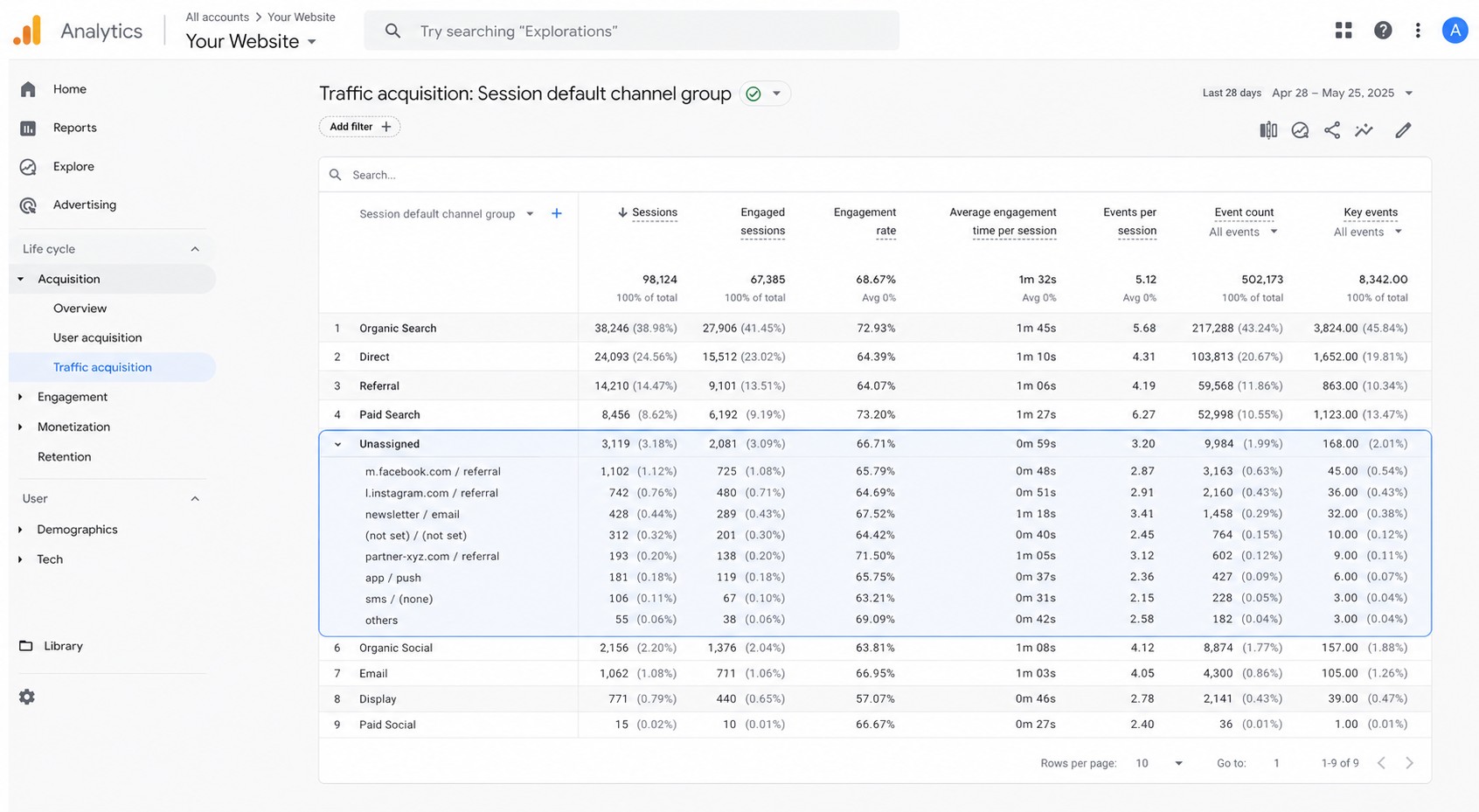
Once you've located it, add a secondary dimension to see what's actually inside the bucket:
- Session source / medium
- Session campaign
- Landing page
- Device category
You'll often find one obvious issue — email links using utm_medium=newsletter instead of utm_medium=email, or a paid campaign with no UTMs at all. Sometimes you'll find a handful of small sources that aren't worth fixing. Focus on the Unassigned traffic that affects decisions you'd actually make.
How to reduce Unassigned traffic
You probably won't eliminate Unassigned traffic entirely, and that's fine. The practical goal is to reduce the portion that should clearly belong somewhere else.
1. Create a simple UTM naming system
You don't need a complicated spreadsheet. For most small businesses, a simple structure is enough:
utm_source: where the traffic came from —google,facebook,newsletter, a partner nameutm_medium: the channel type —email,cpc,social,referralutm_campaign: the campaign name —spring_sale,black_friday,product_launch
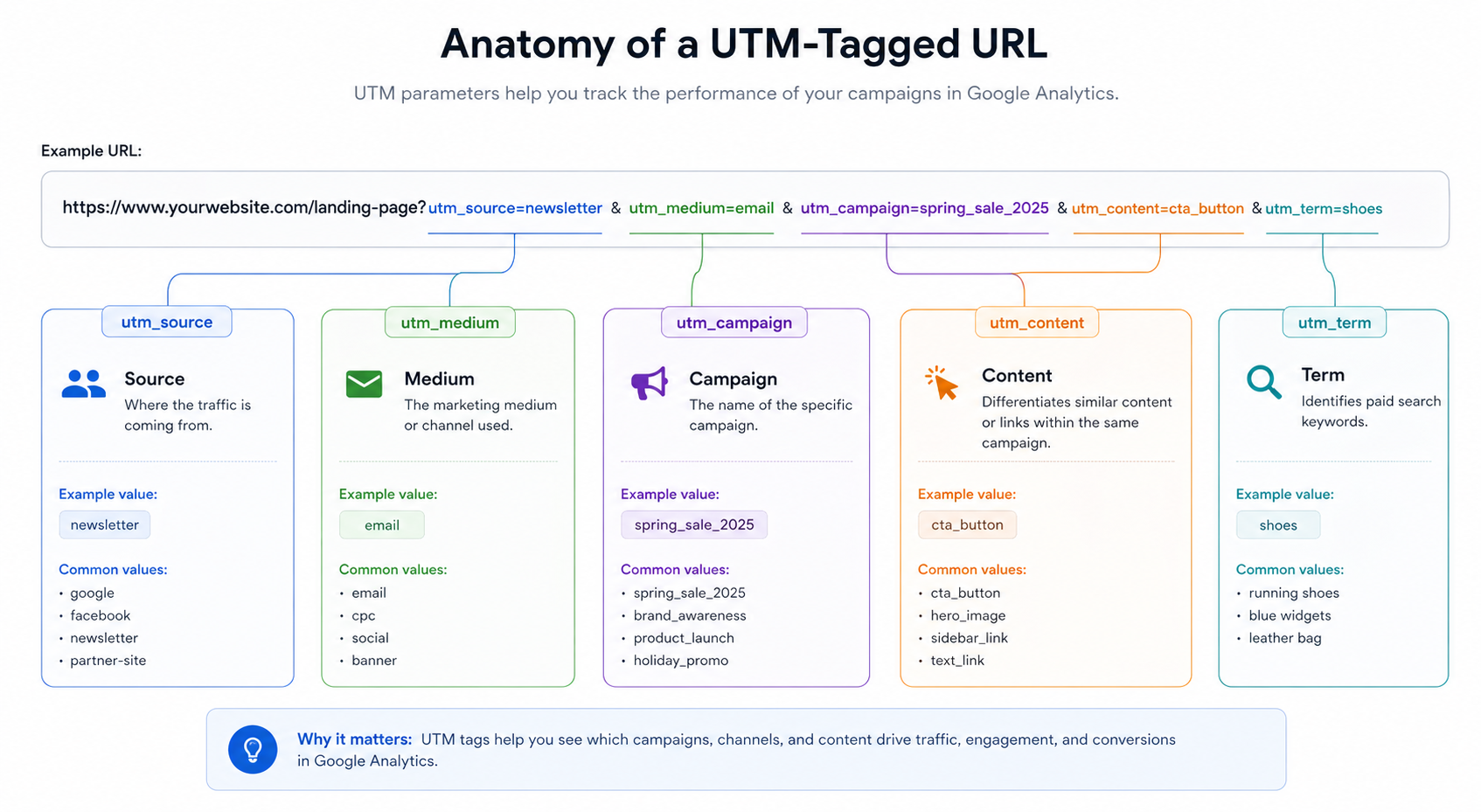
Keep utm_medium consistent across everyone and every tool that creates links. That single field does the most work.
2. Use lowercase values
Pick lowercase and stick with it. utm_medium=email and utm_medium=Email are different values in GA4's eyes, and both can appear as separate rows in your reports.
3. Fix email tracking first
Email is usually the easiest place to make a quick reduction. A newsletter link:
utm_source=newsletter&utm_medium=email&utm_campaign=weekly_update
A promotional email:
utm_source=newsletter&utm_medium=email&utm_campaign=spring_promo
Adjust the source and campaign to fit your setup — just keep the medium as email.
4. Check paid campaigns
For Google Ads, make sure GA4 and Google Ads are linked and that auto-tagging is on. For other ad platforms, use UTMs. What matters isn't whether you use cpc or paid_social — it's that you're not using both for the same type of campaign.
5. Test links before campaigns go live
Click the final link yourself before sending. Confirm the landing page loads, the UTM parameters are still in the URL, and the values are spelled correctly. It takes a minute and catches problems before they create a week of misleading data.
6. Don't chase every small source
Some Unassigned traffic isn't worth fixing. If a source sends five visits and no conversions, leave it. Start with the campaigns and channels that affect revenue, leads, or signups — the traffic that would change something if you knew where it came from.
Get a weekly GA4 brief that flags traffic quality issues automatically
Kulma turns your GA4 data into a weekly brief: what changed, what it likely means, and what to check next. If Unassigned traffic is growing, or a channel's numbers look off, it'll surface that before you have to go looking for it.
Most business owners don't have time to pull up GA4 acquisition reports every week and dig through source/medium breakdowns. Kulma does that for you.
See your weekly GA4 brief — Try Kulma freeNo credit card required · Cancel anytime
Avoid these common mistakes
Don't use UTMs on internal links. Don't rebuild your entire UTM naming system overnight — pick a convention and apply it going forward. Don't change campaign naming every month, and don't judge traffic quality by channel labels alone. Conversions, engagement rate, and landing page performance tell you whether traffic was worth anything. The labels just tell you where it was classified.
Clean data is useful because it leads to better decisions. It's not a goal in itself.
Quick checklist for GA4 Unassigned traffic
- Open Traffic acquisition and look for Unassigned
- Add Session source / medium as a secondary dimension
- Look for unusual
utm_mediumvalues - Review email campaign links
- Review paid campaign links
- Confirm redirects aren't stripping UTM parameters
- Switch all UTM values to lowercase
- Remove UTMs from internal links
- Focus on traffic that affects leads, sales, or signups
- Watch the trend over a few reporting periods
Frequently asked questions
What does Unassigned mean in GA4?
It means a session had some source or medium data, but it didn't match any of GA4's standard channel grouping rules. The traffic is real — GA4 just can't categorise it.
Is Unassigned traffic the same as Direct / None?
No. Direct / None means GA4 received no source information at all. Unassigned means GA4 received some source or medium data but couldn't match it to a standard channel. They look similar in reports but need different fixes.
How much Unassigned traffic is normal?
A small amount is expected, especially for sites that use email, QR codes, PDFs, or smaller ad platforms. It becomes worth fixing when it's large enough to hide traffic you'd act on — particularly conversions or high-value sessions.
Does Unassigned traffic affect conversion tracking?
Yes. If conversions are attributed to Unassigned, you can't tell which channel or campaign drove them. This makes high-performing channels look weaker than they are, and can lead to bad budget decisions.
Will fixing UTM parameters change historical GA4 data?
No. Changes apply to new data going forward. Historical reports will still show the original attribution. Give it a few weeks after making changes before drawing conclusions.
What's the most common cause of Unassigned traffic?
Inconsistent utm_medium values — especially in email campaigns using values like newsletter or weekly-email instead of the standard email. Fixing this one field often removes the majority of Unassigned traffic.
Related guides: How to reduce bot traffic in GA4 · How to fix self-referrals in GA4 · AI referral traffic in GA4